This post is Part 1 of the Android AppSec 101 Series, where we analyze real-world mobile vulnerabilities, inspect source code, and implement secure fixes using the Allsafe laboratory target.
- Part 0: Introduction
- Part 1: Data Protection & Secrets (You are here)
- Part 2: Android Component & IPC Security
- Part 3: Injections & Code Execution
- Part 4: Client-Side Bypasses
- Part 5: RE & Binary Patching
Executive Summary
Mobile applications frequently handle sensitive data — from API keys and authentication tokens to personal user information. When developers rely on client-side storage without proper encryption or leave debugging tools active in production, attackers can extract this data with minimal effort.
In Part 1 of this series, we examine four fundamental data protection vulnerabilities inside Allsafe, analyze the decompiled source code using JADX-GUI, and demonstrate how to remediate each flaw using Android security best practices.
Insecure Logging
Quick Attack Preview
Enter
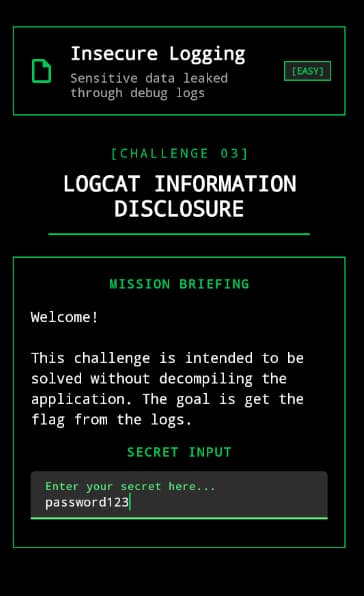
passwordin the challenge and press Enter. While monitoringadb logcat --pid <PID> | grep ALLSAFE, the secret immediately appears in plaintext. Let’s reproduce the issue first, then investigate why it happens and how to fix it.
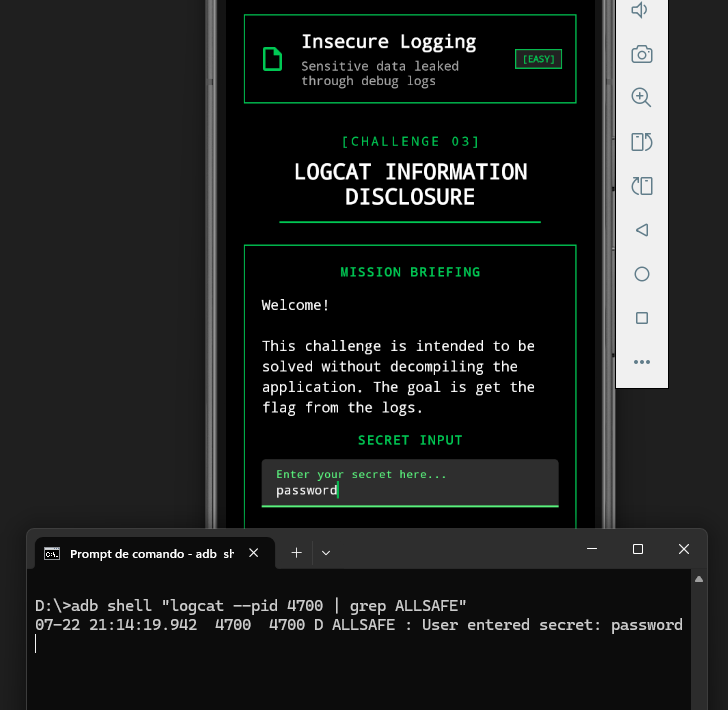
During development, engineers use logging mechanisms to trace execution flow and debug errors. If these calls remain active in production release builds, any process or connected system with access to system logs (logcat) can read cleartext sensitive data.
Before Android 4.1 (API level 16), any privileged application with READ_LOGS permission could inspect logs from every process. Modern Android versions restrict this access considerably, but logs remain visible through ADB during debugging, rooted devices, engineering builds, OEM debugging tools, crash-reporting frameworks, and developer oversight. Consequently, logging secrets is still considered an information disclosure vulnerability.
In the OWASP Mobile Security framework, this weakness is formally categorized under MASWE-0001: Insertion of Sensitive Data into Logs (mapping to global CWE-532). It directly violates the MASVS-STORAGE security standard.
Dynamic Analysis
We can connect to the device via ADB and use logcat to monitor the logs of the allsafe application.
We start by inspecting the running processes on the device to identify the PID of the allsafe application.
# Get all running processes
adb shell ps

# Search for "ALLSAFE" in the process list
adb shell ps | grep "ALLSAFE"
Output:
USER           PID  PPID     VSZ    RSS WCHAN            ADDR S NAME
u0_a184       4700   319 13821972 135664 0                  0 S infosecadventures.allsafe
Now, we can use logcat to monitor the logs of the allsafe application. And if we input something in the application, we should see some logs in the output.
adb logcat --pid 4700 | grep "ALLSAFE"

# Or in case you don't have grep available
adb shell "logcat --pid 4700 | grep ALLSAFE"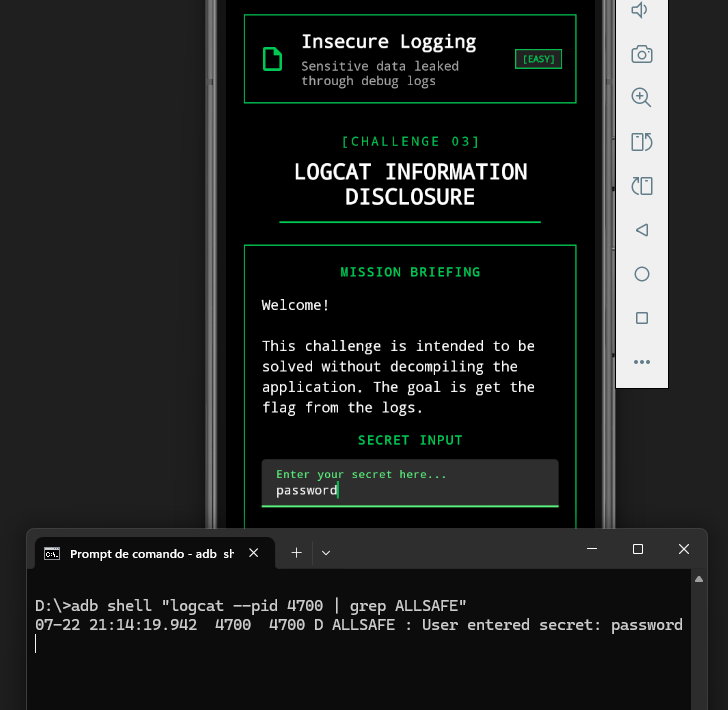
Alternatively, if you prefer a graphical interface or need advanced filtering options, Wireshark natively supports Android logcat capture via its built-in androiddump plugin.
To monitor logs using Wireshark:
- Ensure your device is connected via ADB (
adb devices). - Open Wireshark and select the Android Logcat Main capture interface from the main screen.
- Start the capture and apply Wireshark display filters to isolate the logs:
# Filter by tag
logcat_text.tag contains "ALLSAFE"

# Search for logs containing sensitive keywords
logcat_text contains "secret"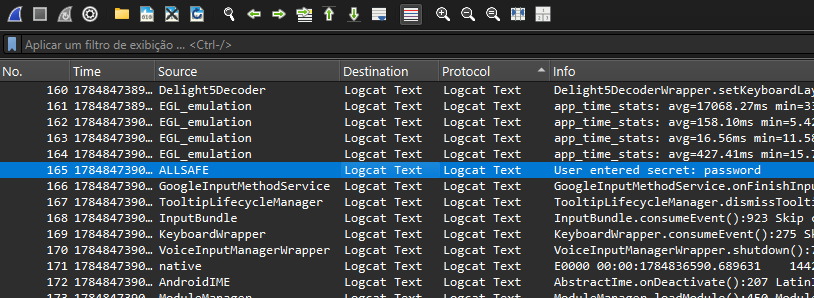
Using Wireshark for logcat analysis is particularly useful because it allows us to correlate system logs and network traffic side-by-side on a single timeline.
Static Analysis
We can start by using JADX-GUI to decompile the APK file and inspect the source code. Then, we look for any potential sources of sensitive data leaks. In this case, we are looking for Log.d, Log.e, Log.i, Log.v, and Log.w calls that might be logging sensitive information. In this specific case, we can see an instance of Log.d in the infosecadventures.allsafe.challenges.InsecureLogging.java file.
package infosecadventures.allsafe.challenges;

import android.os.Bundle;
import android.text.Editable;
import android.util.Log;
import android.view.KeyEvent;
import android.view.LayoutInflater;
import android.view.View;
import android.view.ViewGroup;
import android.widget.TextView;
import androidx.fragment.app.Fragment;
import com.google.android.material.textfield.TextInputEditText;
import infosecadventures.allsafe.R;
import java.util.Objects;

public class InsecureLogging extends Fragment {
    @Override
    public View onCreateView(LayoutInflater inflater, ViewGroup container, Bundle savedInstanceState) {
        View view = inflater.inflate(R.layout.fragment_insecure_logging, container, false);
        setHasOptionsMenu(true);
        final TextInputEditText secret = (TextInputEditText) view.findViewById(R.id.secret);
        secret.setOnEditorActionListener(new TextView.OnEditorActionListener() {
            @Override
            public final boolean onEditorAction(TextView textView, int i, KeyEvent keyEvent) {
                return InsecureLogging.lambda$onCreateView$0(secret, textView, i, keyEvent);
            }
        });
        return view;
    }

    static boolean lambda$onCreateView$0(TextInputEditText secret, TextView v, int actionId, KeyEvent event) {
        if (actionId == 6 && !((Editable) Objects.requireNonNull(secret.getText())).toString().equals("")) {
            Log.d("ALLSAFE", "User entered secret: " + secret.getText().toString());
            return false;
        }
        return false;
    }
}
Code Breakdown
In the Code Breakdown sections, we focus only on the vulnerability and the remediations. So we will not explain the entire code. If a line of code isn’t relevant to why the flaw exists or how it works, we will simply ignore it.
public class InsecureLogging extends Fragment {
    // onCreateView lifecycle method (called when the fragment is created)
    @Override
    public View onCreateView(LayoutInflater inflater, ViewGroup container, Bundle savedInstanceState) {
        // [Inflate layout]
        // [Initialize UI components]
        // [Set up click listener]
    }

    // Lambda method to handle text input
    static boolean lambda$onCreateView$0(TextInputEditText secret, TextView v, int actionId, KeyEvent event) {
        // Check if the actionId is 6 (IME_ACTION_DONE - user pressed enter key) and the text is not empty
        if (actionId == 6 && !((Editable) Objects.requireNonNull(secret.getText())).toString().equals("")) {
            // Log the secret to the system logs
            Log.d("ALLSAFE", "User entered secret: " + secret.getText().toString());
            return false;
        }

        // Return false to indicate that the event was not handled
        return false;
    }
}
In summary, if the user entered something that is not empty into the secret text input field, and then pressed Enter, the application will log the input to the system logs.
Remediation & Code Fix
There are some ways we can fix this code. The point is that if you are developing a mobile application, you should not be logging sensitive information to the system logs. It’s a security risk and a bad practice.
To remediate insecure logging vulnerabilities, developers should simply avoid logging sensitive information to the system logs in production environments. We can do that by preventing logging at all costs (removing all log calls in release mode), use a logging framework (Timber in Java, Logger in Flutter) that supports conditional logging, or setting R8 proguard rules to remove all log levels except warning and error.
1. Primary Remediation: Remove or Redact Sensitive Logs
The most direct fix is to remove any log call that outputs sensitive user inputs, credentials, or PII. If operational logging is necessary during development, ensure the output is redacted or masked:
// BEFORE (Vulnerable):
Log.d("ALLSAFE", "User entered secret: " + secret.getText().toString());

// AFTER (Remediated):
// Completely remove the log, or restrict to debug mode with non-sensitive metadata:
if (BuildConfig.DEBUG) {
    Log.d("ALLSAFE", "Secret input received (length: " + secret.getText().toString().length() + ")");
}
2. Build-Time Protection: Strip Logs with R8 / ProGuard
To prevent developer oversight when debug logs are left in code, configure R8 / ProGuard (proguard-rules.pro) to automatically remove Log class methods from the final release APK:
# Remove verbose, debug, and info logs in production release builds
-assumenosideeffects class android.util.Log {
    public static int v(...);
    public static int d(...);
    public static int i(...);
}
3. Best Practice: Production-Aware Logging Frameworks (Timber)
Instead of calling android.util.Log directly, use a framework like Timber. Timber separates logging logic from behavior by allowing you to plant log trees dynamically:
// In Application class:
if (BuildConfig.DEBUG) {
    Timber.plant(new Timber.DebugTree());
}

// In code:
Timber.d("Processing input..."); // Silently dropped in release builds
4. Verification & Testing (OWASP MASTG)
To verify that logging controls are functioning correctly in production release builds, cross-reference the following test cases:
- MASTG-TEST-0231: References to Logging APIs - OWASP
- MASTG-TEST-0203: Runtime Use of Logging APIs - OWASP
Impact
If secrets, access tokens, session identifiers, or personally identifiable information are written to logs, they may become accessible to developers, attackers with debugging access, rooted devices, OEM diagnostic software, or crash reporting services. This can lead to credential disclosure, account compromise, or privacy violations.
Documented cases of log-based incidents:
- Leaked OAuth response code in logs in Coinbase - hackerone
- Logged plaintext passwords in EquityPandit - SentinelOne
Hardcoded Credentials
Embedding static strings such as API secrets, database passwords, or private keys directly inside application code or resource files relies on “security through obscurity.” Android APKs can be effortlessly decompiled back into readable Java/Kotlin code or resource XMLs.
In the OWASP Mobile Application Security framework, embedding secrets inside the application binary falls under MASWE-0005: API Keys Hardcoded in the App Package and contributes to violations of MASVS-AUTH and MASVS-CRYPTO, depending on the type of secret. It also maps to CWE-798: Use of Hard-coded Credentials.
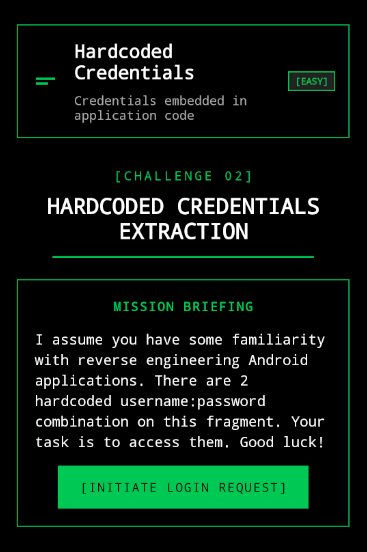
As the screenshot below shows, we need to find two (2) hardcoded username and password combinations.
Dynamic Analysis
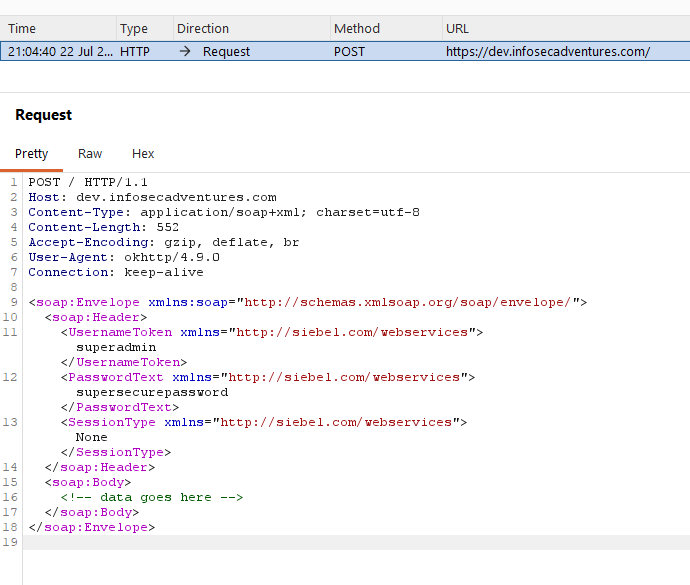
As we can see in the screenshot above, there’s a button to initiate a login request, so the first thing we could try is to intercept the request using Burp Suite as a proxy.
POST / HTTP/1.1
Host: dev.infosecadventures.com
Content-Type: application/soap+xml; charset=utf-8
Content-Length: 552
Accept-Encoding: gzip, deflate, br
User-Agent: okhttp/4.9.0
Connection: keep-alive

<soap:Envelope xmlns:soap="http://schemas.xmlsoap.org/soap/envelope/">
<soap:Header>
    <UsernameToken xmlns="http://siebel.com/webservices">
        superadmin
    </UsernameToken>
    <PasswordText xmlns="http://siebel.com/webservices">
        supersecurepassword
    </PasswordText>
    <SessionType xmlns="http://siebel.com/webservices">
        None
    </SessionType>
</soap:Header>
<soap:Body>
    <!-- data goes here -->
</soap:Body>
</soap:Envelope>
We can clearly see it’s a SOAP request for login, where the UsernameToken is “superadmin” and the PasswordText is “supersecurepassword”, both hardcoded in the application. This confirms that the application is embedding authentication credentials directly into outbound requests. However, to determine whether additional secrets are present elsewhere in the APK, we continue with static analysis.
Static Analysis
Using JADX-GUI, we can decompile the APK file and inspect the source code of the HardcodedCredentials fragment, which is shown below.
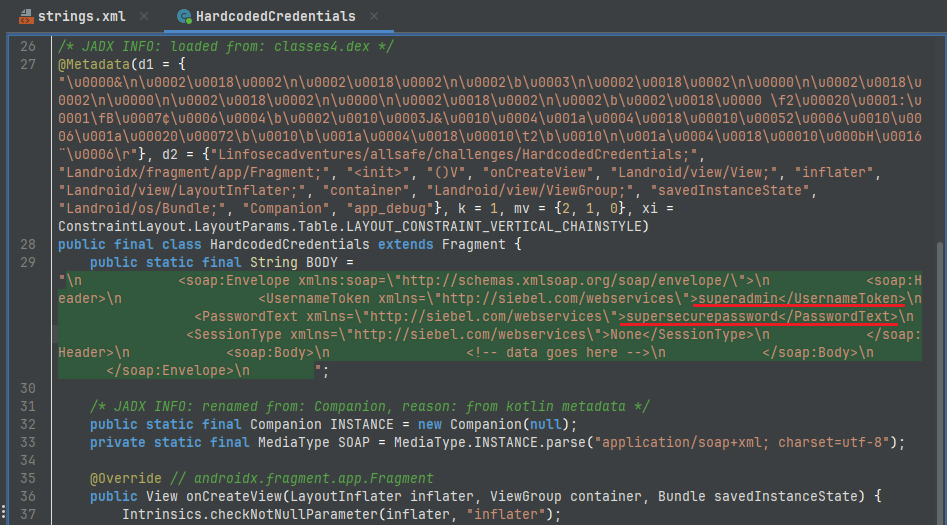
We can see on line 29 that there’s a POST request body being built, with the username and password hardcoded in the application. Those credentials match what we saw in Burp Suite, so we have found the first pair of credentials: superadmin:supersecurepassword.
Now, to find the second pair of credentials, we need to read and understand the source code of the login callback function, which is shown below in the Code Breakdown.
package infosecadventures.allsafe.challenges;

import android.os.Bundle;
import android.view.LayoutInflater;
import android.view.View;
import android.view.ViewGroup;
import android.widget.Button;
import androidx.constraintlayout.widget.ConstraintLayout;
import androidx.fragment.app.Fragment;
import androidx.fragment.app.FragmentActivity;
import infosecadventures.allsafe.R;
import infosecadventures.allsafe.utils.SnackUtil;
import java.io.IOException;
import kotlin.Metadata;
import kotlin.jvm.internal.DefaultConstructorMarker;
import kotlin.jvm.internal.Intrinsics;
import okhttp3.Call;
import okhttp3.Callback;
import okhttp3.MediaType;
import okhttp3.OkHttpClient;
import okhttp3.Request;
import okhttp3.RequestBody;
import okhttp3.Response;

/* JADX INFO: compiled from: HardcodedCredentials.kt */
/* JADX INFO: loaded from: classes4.dex */
@Metadata(d1 = {"\u0000&\n\u0002\u0018\u0002\n\u0002\u0018\u0002\n\u0002\b\u0003\n\u0002\u0018\u0002\n\u0000\n\u0002\u0018\u0002\n\u0000\n\u0002\u0018\u0002\n\u0000\n\u0002\u0018\u0002\n\u0002\b\u0002\u0018\u0000 \f2\u00020\u0001:\u0001\fB\u0007¢\u0006\u0004\b\u0002\u0010\u0003J&\u0010\u0004\u001a\u0004\u0018\u00010\u00052\u0006\u0010\u0006\u001a\u00020\u00072\b\u0010\b\u001a\u0004\u0018\u00010\t2\b\u0010\n\u001a\u0004\u0018\u00010\u000bH\u0016¨\u0006\r"}, d2 = {"Linfosecadventures/allsafe/challenges/HardcodedCredentials;", "Landroidx/fragment/app/Fragment;", "<init>", "()V", "onCreateView", "Landroid/view/View;", "inflater", "Landroid/view/LayoutInflater;", "container", "Landroid/view/ViewGroup;", "savedInstanceState", "Landroid/os/Bundle;", "Companion", "app_debug"}, k = 1, mv = {2, 1, 0}, xi = ConstraintLayout.LayoutParams.Table.LAYOUT_CONSTRAINT_VERTICAL_CHAINSTYLE)
public final class HardcodedCredentials extends Fragment {
    public static final String BODY =
        "<soap:Envelope xmlns:soap=\"http://schemas.xmlsoap.org/soap/envelope/\">\n" +
        "    <soap:Header>\n" +
        "        <UsernameToken xmlns=\"http://siebel.com/webservices\">superadmin</UsernameToken>\n" +
        "        <PasswordText xmlns=\"http://siebel.com/webservices\">supersecurepassword</PasswordText>\n" +
        "        <SessionType xmlns=\"http://siebel.com/webservices\">None</SessionType>\n" +
        "    </soap:Header>\n" +
        "    <soap:Body>\n" +
        "        <!-- data goes here -->\n" +
        "    </soap:Body>\n" +
        "</soap:Envelope>";

    /* JADX INFO: renamed from: Companion, reason: from kotlin metadata */
    public static final Companion INSTANCE = new Companion(null);
    private static final MediaType SOAP = MediaType.INSTANCE.parse("application/soap+xml; charset=utf-8");

    @Override // androidx.fragment.app.Fragment
    public View onCreateView(LayoutInflater inflater, ViewGroup container, Bundle savedInstanceState) {
        Intrinsics.checkNotNullParameter(inflater, "inflater");
        View view = inflater.inflate(R.layout.fragment_hardcoded_credentials, container, false);
        View viewFindViewById = view.findViewById(R.id.request);
        Intrinsics.checkNotNullExpressionValue(viewFindViewById, "findViewById(...)");
        Button request = (Button) viewFindViewById;
        request.setOnClickListener(new View.OnClickListener() { // from class: infosecadventures.allsafe.challenges.HardcodedCredentials$$ExternalSyntheticLambda0
            @Override // android.view.View.OnClickListener
            public final void onClick(View view2) {
                HardcodedCredentials.onCreateView$lambda$0(this.f$0, view2);
            }
        });
        return view;
    }

    /* JADX INFO: Access modifiers changed from: private */
    public static final void onCreateView$lambda$0(HardcodedCredentials this$0, View it) {
        OkHttpClient client = new OkHttpClient();
        RequestBody body = RequestBody.INSTANCE.create(BODY, SOAP);
        Request.Builder builder = new Request.Builder();
        String string = this$0.getString(R.string.dev_env);
        Intrinsics.checkNotNullExpressionValue(string, "getString(...)");
        Request req = builder.url(string).post(body).build();
        client.newCall(req).enqueue(new Callback() { // from class: infosecadventures.allsafe.challenges.HardcodedCredentials$onCreateView$1$1
            @Override // okhttp3.Callback
            public void onResponse(Call call, Response response) {
                Intrinsics.checkNotNullParameter(call, "call");
                Intrinsics.checkNotNullParameter(response, "response");
            }

            @Override // okhttp3.Callback
            public void onFailure(Call call, IOException e) {
                Intrinsics.checkNotNullParameter(call, "call");
                Intrinsics.checkNotNullParameter(e, "e");
            }
        });
        SnackUtil snackUtil = SnackUtil.INSTANCE;
        FragmentActivity fragmentActivityRequireActivity = this$0.requireActivity();
        Intrinsics.checkNotNullExpressionValue(fragmentActivityRequireActivity, "requireActivity(...)");
        snackUtil.simpleMessage(fragmentActivityRequireActivity, "Under development!");
    }

    /* JADX INFO: compiled from: HardcodedCredentials.kt */
    @Metadata(d1 = {"\u0000\u001a\n\u0002\u0018\u0002\n\u0002\u0010\u0000\n\u0002\b\u0003\n\u0002\u0018\u0002\n\u0002\b\u0003\n\u0002\u0010\u000e\n\u0000\b\u0086\u0003\u0018\u00002\u00020\u0001B\t\b\u0002¢\u0006\u0004\b\u0002\u0010\u0003R\u0013\u0010\u0004\u001a\u0004\u0018\u00010\u0005¢\u0006\b\n\u0000\u001a\u0004\b\u0006\u0010\u0007R\u000e\u0010\b\u001a\u00020\tX\u0086T¢\u0006\u0002\n\u0000¨\u0006\n"}, d2 = {"Linfosecadventures/allsafe/challenges/HardcodedCredentials$Companion;", "", "<init>", "()V", "SOAP", "Lokhttp3/MediaType;", "getSOAP", "()Lokhttp3/MediaType;", "BODY", "", "app_debug"}, k = 1, mv = {2, 1, 0}, xi = ConstraintLayout.LayoutParams.Table.LAYOUT_CONSTRAINT_VERTICAL_CHAINSTYLE)
    public static final class Companion {
        public /* synthetic */ Companion(DefaultConstructorMarker defaultConstructorMarker) {
            this();
        }

        private Companion() {
        }

        public final MediaType getSOAP() {
            return HardcodedCredentials.SOAP;
        }
    }
}
Code Breakdown
public final class HardcodedCredentials extends Fragment {
    // String constant for SOAP request body with hardcoded credentials
    public static final String BODY =
        "<soap:Envelope xmlns:soap=\"http://schemas.xmlsoap.org/soap/envelope/\">\n" +
        "    <soap:Header>\n" +
        "        <UsernameToken xmlns=\"http://siebel.com/webservices\">superadmin</UsernameToken>\n" +
        "        <PasswordText xmlns=\"http://siebel.com/webservices\">supersecurepassword</PasswordText>\n" +
        "        <SessionType xmlns=\"http://siebel.com/webservices\">None</SessionType>\n" +
        "    </soap:Header>\n" +
        "    <soap:Body>\n" +
        "        <!-- data goes here -->\n" +
        "    </soap:Body>\n" +
        "</soap:Envelope>";

    // onCreateView lifecycle method (called when the fragment is created)
    @Override
    public View onCreateView(LayoutInflater inflater, ViewGroup container, Bundle savedInstanceState) {
        // [Inflate layout]
        // [Initialize UI components]
        // [Set up click listener]
    }

    // onClick method for the request button
    public static final void onCreateView$lambda$0(HardcodedCredentials this$0, View it) {
        // Create a new OkHttpClient
        OkHttpClient client = new OkHttpClient();

        // Create a RequestBody from the BODY string and SOAP media type
        RequestBody body = RequestBody.INSTANCE.create(BODY, SOAP);

        // Create a new Request.Builder
        Request.Builder builder = new Request.Builder();

        // Get the dev_env string from the resources and check if it's not null
        String string = this$0.getString(R.string.dev_env);
        Intrinsics.checkNotNullExpressionValue(string, "getString(...)");

        // Build the request with the dev_env URL and the request body
        Request req = builder.url(string).post(body).build();

        // Enqueue the request (execute asynchronously)
        client.newCall(req).enqueue(new Callback() {
            // [Success or Failure Callbacks]
        });

        // [Display toast message]
    }
}
In Android applications, hardcoded credentials or sensitive strings aren’t always placed directly as raw code variables. They are frequently stored in application resource files like res/values/strings.xml.
If you look closely at lines 56-57 of the decompiled fragment (without the comments), you will see:
String string = this$0.getString(R.string.dev_env);
Intrinsics.checkNotNullExpressionValue(string, "getString(...)");
The application is fetching a string resource referenced by R.string.dev_env. Now we just need to find the strings.xml and search for the value of dev_env.
<resources>
    <string name="dev_env">https://admin:password123@dev.infosecadventures.com</string>
</resources>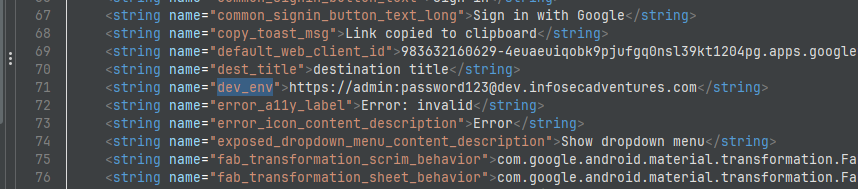
We can see that the value of dev_env is https://admin:password123@dev.infosecadventures.com. This is the second hardcoded credential we needed to find.
Remediation & Code Fix
One of the most common misconceptions in mobile development is that APK files are “compiled” and therefore hide implementation details. In reality, Android applications can be decompiled with freely available tools such as JADX or Apktool, allowing attackers to recover embedded constants, strings, resources, and configuration files. Consequently, any credential shipped inside the application should be considered public.
As for the code fix, I don’t think there is one in this case, since it’s an architectural decision to use this URL and hardcoded credentials. The real fix really is not shipping this pattern at all. However, I would recommend using a more secure approach, such as the approaches below.
Never Embed Secrets in the APK
Server-side credentials, administrator accounts, API secrets, private keys, and database passwords should never be distributed with the client application.
Instead of:
public static final String API_KEY = "sk_live_xxxxx";Use external configuration sources like:
- Server-provided configuration (fetched at runtime).
- Environment variables in CI/CD pipelines.
- Secure configuration management services (e.g., AWS Secrets Manager, HashiCorp Vault).
- Build-time configuration injected from build scripts (for non-sensitive values).
- Retrieve temporary credentials from a backend after authenticating the user.
Move Sensitive Logic to the Backend
Business logic that requires high trust or involves critical operations, such as payment authorization, access control decisions, or encryption key management, should be implemented on the server-side, not in the mobile application.
Operations requiring privileged credentials should be performed by a trusted backend service.
// Business logic that should NOT be on the client:
// - Payment processing
// - Access control decisions
// - Encryption key generation
// - Critical business rules
The client should never possess credentials granting administrative or unrestricted access.
Use Short-Lived Tokens
Access tokens, API keys, and session tokens should be short-lived and automatically rotated. Hardcoding tokens with long expiration times increases the window of opportunity for attackers if the token is extracted.
If authentication is required, issue short-lived access tokens (OAuth2, JWT, etc.) after successful login rather than embedding permanent credentials.
If an attacker extracts a token, a short lifespan limits the duration of potential misuse.
Store Configuration, Not Secrets
It’s perfectly acceptable for an APK to contain:
- API endpoints
- Feature flags
- UI configuration
It’s NOT acceptable to include:
- passwords
- API secrets
- signing keys
- encryption keys
- administrator accounts
- cloud credentials
Verify During Security Testing
Before every release, search the APK for any hardcoded secrets. Search strings.xml, code, and configuration files. Automated tools, such as Gitleaks and Trufflehog, can help you with that.
Impact
Hardcoded credentials should be considered compromised the moment an application is distributed. Unlike server-side secrets, client-side secrets cannot be revoked simply by hiding the source code, since every user receives a complete copy of the APK.
Depending on the credential, an attacker may be able to:
- Authenticate as privileged users.
- Access internal APIs or development environments.
- Extract additional sensitive information from backend services.
- Reuse credentials across staging and production environments.
- Reverse engineer proprietary business logic.
- Impersonate legitimate clients by replaying authenticated requests.
In real-world applications, exposed API keys have resulted in unauthorized access to cloud resources, excessive billing charges, data leakage, and complete backend compromise. Even credentials intended only for development environments can become valuable if those environments contain production data or share authentication infrastructure.
There are some documented cases of hardcoded credentials in real-world applications:
- Twilio Credentials Hardcoded in Mobile Apps Expose Calls, Texts - Eduard Kovacs, SecurityWeek
- Many Mobile Apps Unnecessarily Leak Hardcoded Keys: Analysis - Ionut Arghire, SecurityWeek
Insecure Firebase Configurations
Firebase Realtime Database and Cloud Firestore are cloud-hosted backend-as-a-service (BaaS) platforms widely used in mobile applications for data synchronization and storage. Unlike traditional backends where access control is enforced by custom server APIs, Firebase relies on cloud-side Security Rules to authorize read and write requests. When developers deploy apps with default or overly permissive rules (such as allowing global .read or .write access without authentication), anyone with knowledge of the Firebase database endpoint can directly inspect, alter, or wipe stored data.
A frequent misconception is assuming that database endpoints are secret simply because they are embedded inside a compiled APK. In reality, Firebase URLs (such as https://<app-db>.firebaseio.com/) are readily accessible in decompiled Android resource files or captured via network proxying. Relying on an endpoint URL being hidden is a classic instance of “security through obscurity.” During the Android build process, the Google Services Gradle plugin processes the JSON file and converts its contents into standard Android string resources, so the URL is usually in strings.xml.
In the OWASP Mobile Security framework, auditing cloud database authorization is covered under MASTG-KNOW-0039 and directly violates the MASVS-STORAGE and MASVS-AUTH security requirements. It also maps to global standards CWE-276: Incorrect Default Permissions and CWE-306: Missing Authentication for Critical Function.
Dynamic Analysis
We first need to know if the application uses Firebase and what the endpoint URL is. We can use tools like Wireshark or HTTP Toolkit to intercept the traffic and see if the application uses Firebase. We can also use Frida to hook into the application and see if it uses Firebase.
Burp Suite is not the best tool for this task, as it is designed for HTTP/HTTPS traffic interception and tampering, which is not the case for Firebase Realtime Database and Cloud Firestore, which use custom protocols, which operate over WebSockets or gRPC instead of HTTP/HTTPS.
Using Wireshark
Wireshark allows us to monitor low-level network packets generated when the application interacts with external services.
1. Selecting the Capture Interface
Before capturing traffic, ensure you select the correct network interface:
- Proxy Environment (Burp Suite): If your emulator routes traffic through Burp Suite running locally on
127.0.0.1:8080, select the Adapter for loopback traffic capture (orloon Linux/macOS) in Wireshark to capture loopback traffic between the proxy and host. - Direct ADB Capture: If capturing directly from an emulator or physical device without a local proxy, select Android tcpdump via
androiddump.
2. Identifying Firebase via DNS Lookups
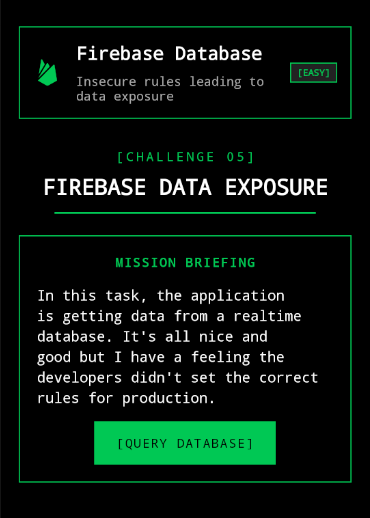
When tapping the “Query Database” button in Allsafe, the app initializes a connection to Firebase. The operating system first issues a DNS query to resolve the database domain.
Apply the following Wireshark display filter to isolate DNS queries targeting Firebase:
# Filter DNS queries for Firebase database domains
dns.qry.name contains "firebaseio.com" || dns.qry.name contains "googleapis.com"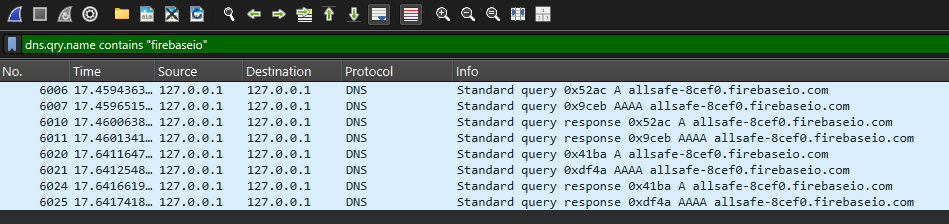
In the capture output, you will see a Standard query A allsafe-8cef0.firebaseio.com request followed by the resolved IP address, confirming the target database hostname.
Using HTTP Toolkit
HTTP Toolkit makes it easy to capture and inspect HTTP/HTTPS or WebSockets traffic of specific apps running on an emulator, which is not easy to do with Wireshark or Burp Suite. By default, it will capture and display only the traffic of the apps running on the emulator, but we can filter for specific apps and protocols to narrow down our analysis.
When we tap “Query Database” in Allsafe, we can see the following requests in HTTP Toolkit:
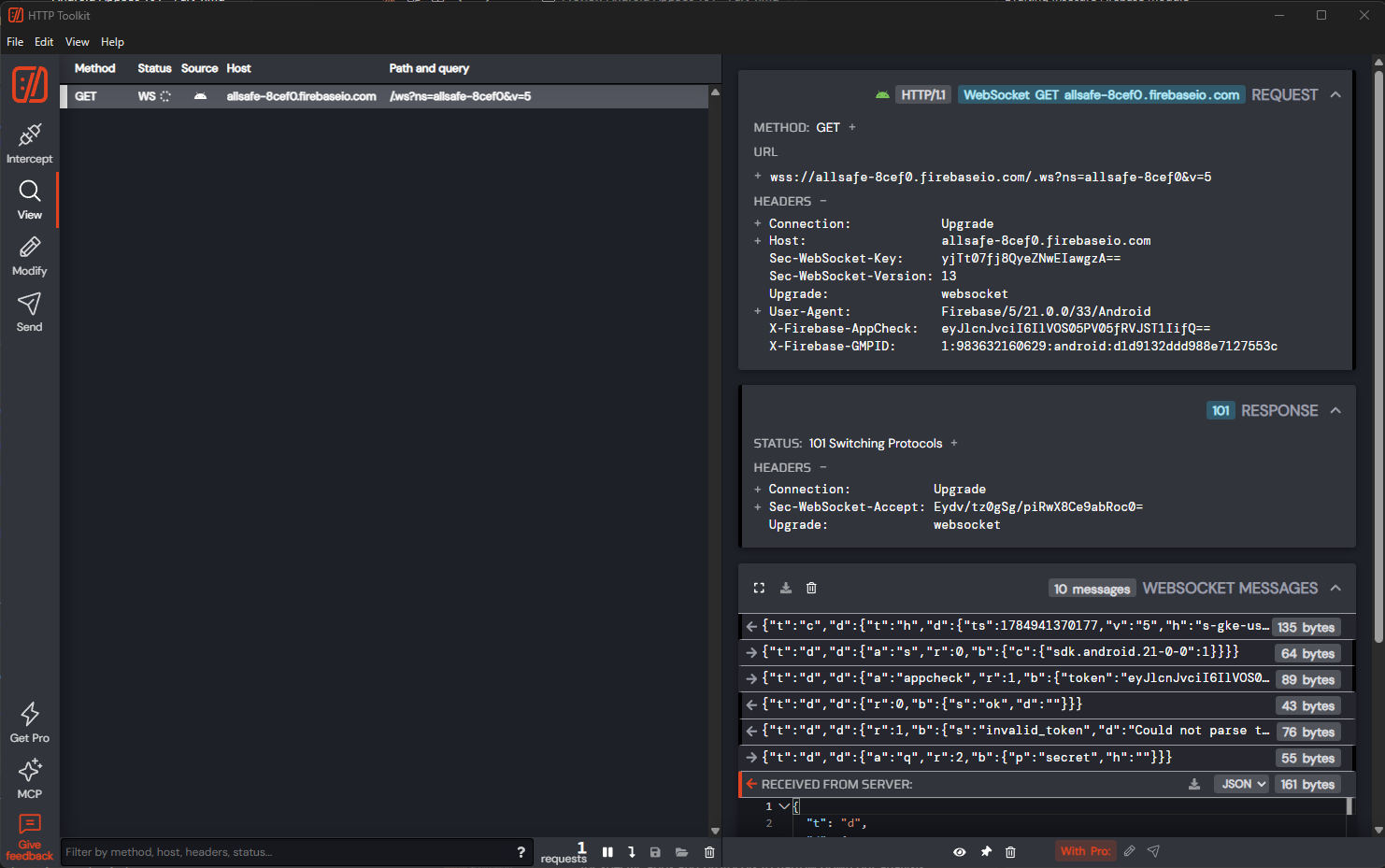
From the capture, we can extract more information than with Wireshark, such as the WebSocket frames and the data being sent and received.
- Firebase Hostname:
s-gke-usc1-nssi2-3.firebaseio.com - Database Namespace (
ns):allsafe-8cef0 - Root REST Endpoint:
https://allsafe-8cef0.firebaseio.com
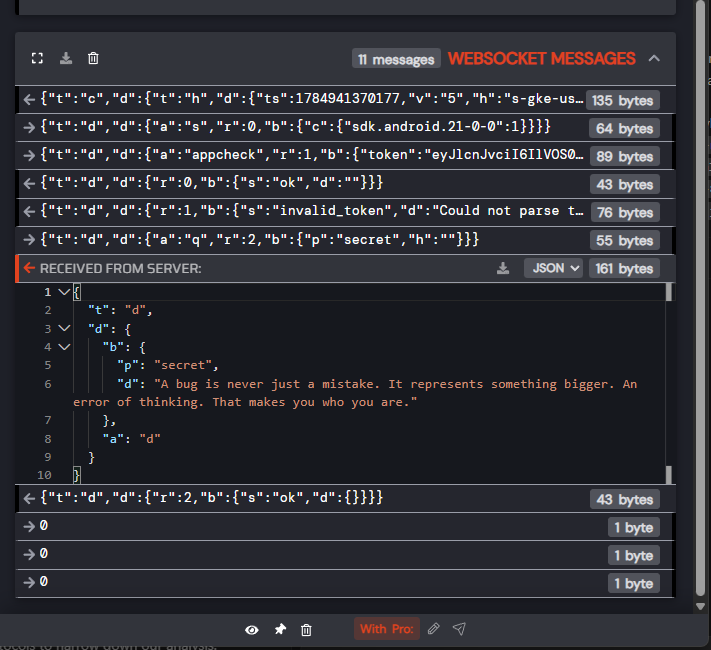
Exploiting the Insecure REST Endpoint (.json)
Once we have identified the target database endpoint (https://allsafe-8cef0.firebaseio.com), we can test for unauthenticated read access using Firebase’s native REST API.
Appending .json to any path in a Firebase Realtime Database instructs the backend to return that node’s data serialized as JSON. We can query the root path using curl or a standard web browser:
# Query the root REST endpoint
curl -i "https://allsafe-8cef0.firebaseio.com/.json"
Output:
{
  "flag": "5077e90341de49d0ed79b8ee53572dab",
  "secret": "A bug is never just a mistake. It represents something bigger. An error of thinking. That makes you who you are."
}
Because the database Security Rules were left with unauthenticated global read permissions (".read": true), Firebase returns the flag and secret in cleartext without requesting any authentication headers or tokens.
Static Analysis
I don’t think it’s necessary to go into the details of static analysis for this module. We have already extracted the information we needed from the dynamic analysis. Not only that, the rules are not set in the application, but in the Firebase console. However, we can use JADX to extract the base URL of the database.
If you search for firebaseio in the decompiled code, you will find the base URL of the database, in strings.xml.
<string name="firebase_database_url">https://allsafe-8cef0.firebaseio.com</string>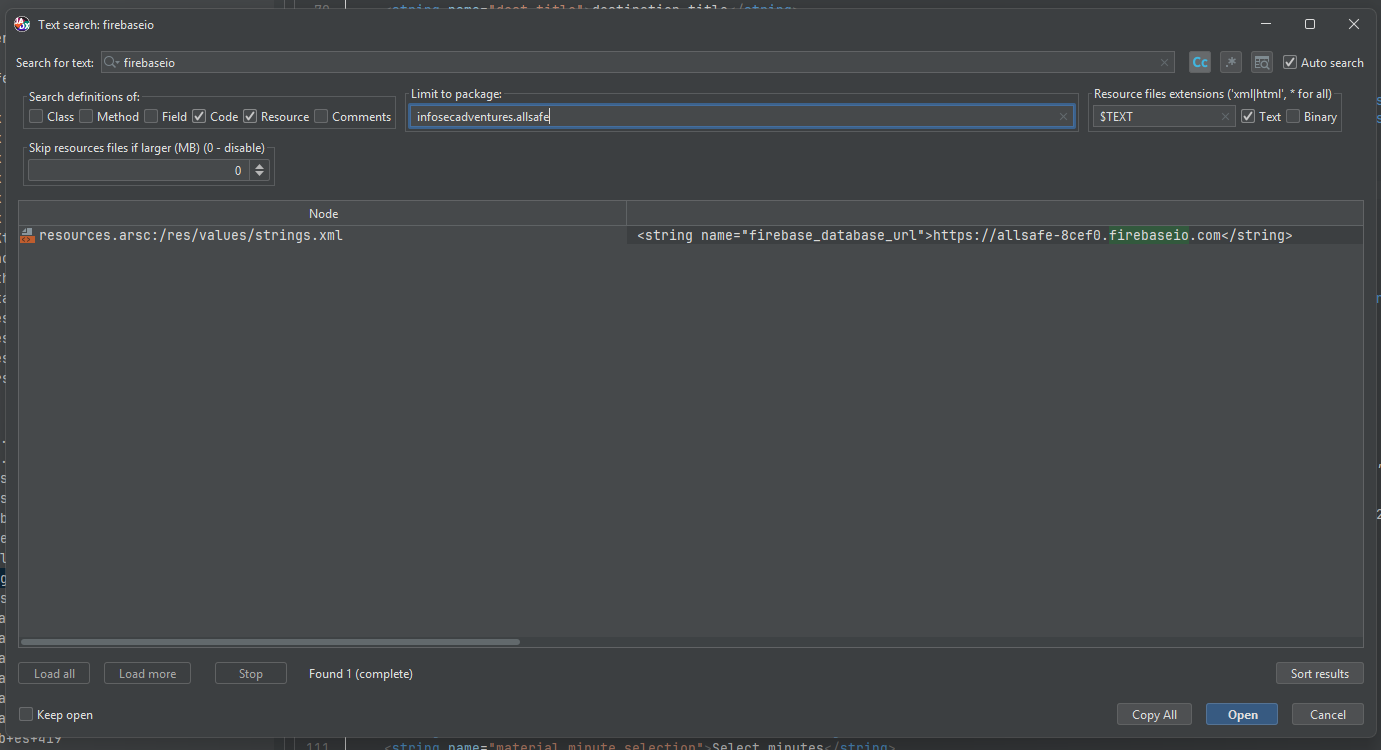
Remediation & Code Fix
Securing Firebase Realtime Database does not require code changes inside the Android application itself; rather, it requires configuring server-side Security Rules inside the Google Firebase Console.
1. Enforce Server-Side Authentication & Authorization Rules
Never leave default or testing rules (".read": true, ".write": true) in production. Security Rules must enforce user authentication and restrict node access on a per-user or per-role basis:
// BEFORE (Vulnerable - Global Public Access):
{
  "rules": {
    ".read": true,
    ".write": true
  }
}

// AFTER (Remediated - Authenticated User Access Only):
{
  "rules": {
    "users": {
      "$uid": {
        // Only the authenticated user can read or write their own data node
        ".read": "$uid === auth.uid",
        ".write": "$uid === auth.uid"
      }
    }
  }
}
2. Implement Firebase App Check
To prevent unauthorized third-party clients, scripts, or curl requests from querying your Firebase backend even if rules permit certain reads, enable Firebase App Check. App Check uses attestation providers like Play Integrity on Android to verify that incoming requests originate from your legitimate, unmodified application binary.
3. Automated Rule Auditing & CI/CD Verification
Regularly audit Firebase security rules using the Firebase Emulator Suite or automated scanners during CI/CD pipelines to ensure permissive test rules are never deployed to production environments.
Impact
When Firebase Security Rules are deployed with permissive or default settings (such as global .read: true or .write: true), the entire database becomes accessible to anyone on the internet without authentication. Because Firebase serves as a direct Backend-as-a-Service (BaaS), attackers do not need to exploit custom application APIs — they can query or modify the database directly using standard HTTP requests or the Firebase SDK.
Depending on which permissions are improperly granted, the impact may include:
- Mass Data Exfiltration: Downloading the full database structure and stored records via a single
.jsonGET request, exposing personally identifiable information (PII), authentication tokens, financial details, or internal communications. - Data Tampering & Destruction: Overwriting, injecting malicious records into, or wiping entire database nodes when global write permissions are enabled, leading to data corruption or severe denial of service.
- Privilege Escalation & Account Takeover: Modifying user roles, permission flags, or profile metadata stored in nodes used by client apps for access control decisions.
- Denial of Wallet (Financial Exhaustion): Initiating rapid, automated read/write operations that consume project bandwidth and database operation quotas, inflating cloud infrastructure costs for the application owner.
Extensive security research has demonstrated that misconfigured Firebase instances are among the most widespread backend vulnerabilities in mobile ecosystems, frequently resulting in massive data exposures across production applications.
A striking real-world example of this scale was uncovered in research published by GitGuardian. Security researchers (mrbruh, xyzeva, and logykk) scanned over 5 million endpoints and identified 916 misconfigured Firebase instances. The open configurations publicly exposed over 19.8 million plaintext secrets and 125 million sensitive user records — including names, email addresses, phone numbers, and billing information with bank details.
Documented research and references:
- Misconfigurations in Google Firebase Lead to Over 19.8 Million Leaked Secrets - Dwayne McDaniel, GitGuardian
- Thousands of Android Apps Leak Data Due to Firebase Misconfigurations - Ionut Arghire, SecurityWeek
- OWASP Mobile Top 10 - M9: Insecure Data Storage
- Firebase Database Takeover in Zego Sense Android app
Insecure SharedPreferences
Android has different ways to store data, such as databases and shared storage. One of them is SharedPreferences. It is a lightweight key-value storage system that allows you to store small amounts of data, such as strings, integers, booleans, floats, and long. It has many drawbacks and is not recommended to use in modern applications, but it is still widely used in legacy applications.
Behind the scenes, SharedPreferences stores data in XML files located in the application’s private directory, specifically in the /data/data/<package_name>/shared_prefs/ directory. These XML files are typically stored in plain text, making them easily accessible to anyone who can access the device’s file system, such as through rooting or ADB access.
SharedPreferences are not insecure by default, though. They are just not designed to securely store secrets.
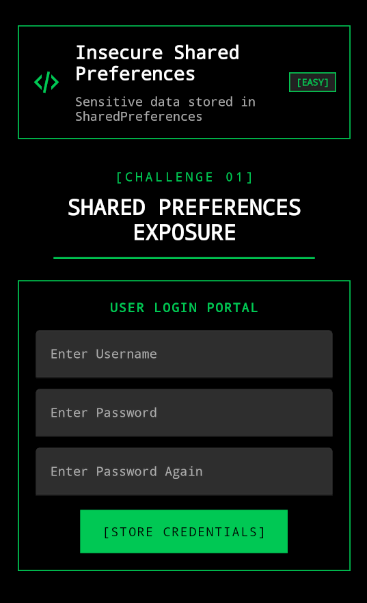
Dynamic Analysis
We can demonstrate it by accessing the file system of the application and looking for the shared preferences file through ADB. First, we need to fill the input fields in the page and click on the button to store the credentials.
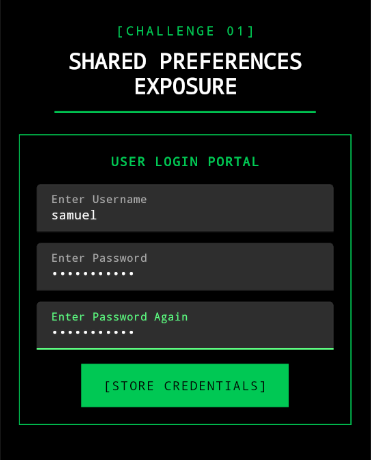
After doing it, we can access the file system of the application and look for the shared preferences file.
# Navigate to the app's internal private data directory as root
adb shell
su
cd /data/data/infosecadventures.allsafe/shared_prefs/

# List and read the XML preference files
ls -la
cat user.xml
Output
<?xml version='1.0' encoding='utf-8' standalone='yes' ?>
<map>
    <string name="password">password</string>
    <string name="username">samuel</string>
</map>
We can see that the credentials are not encrypted and are stored in plain text, making them easily accessible to anyone who can access the device’s file system, such as through rooting or ADB access.
Static Analysis
During static analysis, I searched for calls to getSharedPreferences(). Applications commonly use SharedPreferences to persist user settings, but they’re also frequently (and incorrectly) used to store credentials, authentication tokens, and other sensitive values, as seen in the impact section of this module. This makes them a high-priority target during source review.
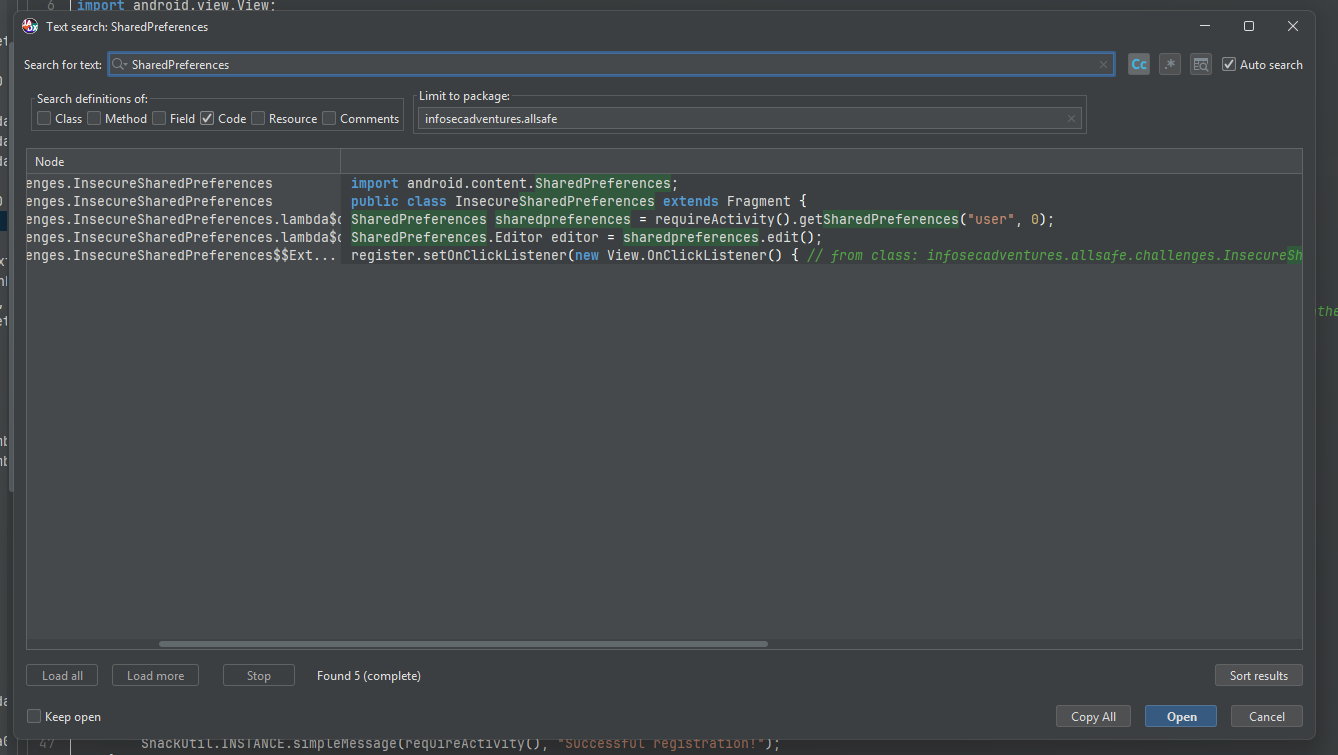
Using JADX-GUI, we can inspect the source code of the InsecureSharedPreferences fragment that stores the credentials, which is shown below.
package infosecadventures.allsafe.challenges;

import android.content.SharedPreferences;
import android.os.Bundle;
import android.view.LayoutInflater;
import android.view.View;
import android.view.ViewGroup;
import android.widget.Button;
import android.widget.EditText;
import androidx.fragment.app.Fragment;
import infosecadventures.allsafe.R;
import infosecadventures.allsafe.utils.SnackUtil;

/* JADX INFO: loaded from: classes4.dex */
public class InsecureSharedPreferences extends Fragment {
    @Override // androidx.fragment.app.Fragment
    public View onCreateView(LayoutInflater inflater, ViewGroup container, Bundle savedInstanceState) {
        View view = inflater.inflate(R.layout.fragment_insecure_shared_preferences, container, false);
        final EditText username = (EditText) view.findViewById(R.id.username);
        final EditText password = (EditText) view.findViewById(R.id.password);
        final EditText passwordAgain = (EditText) view.findViewById(R.id.passwordAgain);
        Button register = (Button) view.findViewById(R.id.register);
        register.setOnClickListener(new View.OnClickListener() { // from class: infosecadventures.allsafe.challenges.InsecureSharedPreferences$$ExternalSyntheticLambda0
            @Override // android.view.View.OnClickListener
            public final void onClick(View view2) {
                this.f$0.lambda$onCreateView$0(username, password, passwordAgain, view2);
            }
        });
        return view;
    }

    /* JADX INFO: Access modifiers changed from: private */
    public /* synthetic */ void lambda$onCreateView$0(EditText username, EditText password, EditText passwordAgain, View v) {
        if (username.getText().toString().isEmpty() || password.getText().toString().isEmpty() || passwordAgain.getText().toString().isEmpty()) {
            SnackUtil.INSTANCE.simpleMessage(requireActivity(), "Please, fill out the form!");
            return;
        }
        if (!password.getText().toString().equals(passwordAgain.getText().toString())) {
            SnackUtil.INSTANCE.simpleMessage(requireActivity(), "Passwords don't match!");
            return;
        }
        SharedPreferences sharedpreferences = requireActivity().getSharedPreferences("user", 0);
        SharedPreferences.Editor editor = sharedpreferences.edit();
        editor.putString("username", username.getText().toString());
        editor.putString("password", password.getText().toString());
        editor.apply();
        SnackUtil.INSTANCE.simpleMessage(requireActivity(), "Successful registration!");
    }
}
Code Breakdown
public class InsecureSharedPreferences extends Fragment {
    @Override
    public View onCreateView(LayoutInflater inflater, ViewGroup container, Bundle savedInstanceState) {
        // [Inflate layout]
        // [Initialize UI components]
        // [Set up click listener]
    }

    // [onClick handler]
    public void lambda$onCreateView$0(EditText username, EditText password, EditText passwordAgain, View v) {
        // [Input validation]

        // Creates a SharedPreferences object with the name "user" in private mode.
        // This is the `user.xml` we found earlier using ADB.
        SharedPreferences sharedpreferences = requireActivity().getSharedPreferences("user", 0);

        // Obtains an Editor to modify the SharedPreferences.
        SharedPreferences.Editor editor = sharedpreferences.edit();

        // Adds a string key "username" with the value from the EditText username to the editor.
        editor.putString("username", username.getText().toString());

        // Adds a string key "password" with the value from the EditText password to the editor.
        editor.putString("password", password.getText().toString());

        // Saves the changes to the SharedPreferences.
        editor.apply();

        // [Display success message]
    }
}
We can see two putString() calls here. One for the username and one for the password. It’s storing the credentials in the user.xml file, in cleartext. Usually the file is stored in private mode, which means only the application itself can access the file, but since it’s a rooted device, we can access the file.
Although MODE_PRIVATE prevents other applications from directly reading an app’s preferences under normal circumstances, the data remains vulnerable on rooted devices, during forensic acquisition, through application backups (depending on configuration), or whenever the application’s sandbox is compromised. Because the values are stored unencrypted, anyone with filesystem access can recover them.
In the OWASP Mobile Application Security framework, this weakness is formally categorized under MASWE-0006: Sensitive Data Stored Unencrypted in Private Storage Locations, and maps to CWE-312 and CWE-921. It also contributes to violations of the OWASP Mobile Top 10 M9: Insecure Data Storage.
Remediation & Code Fix
To remediate insecure SharedPreferences storage, sensitive data such as user credentials, session tokens, access keys, or personally identifiable information (PII) must never be stored in cleartext XML files. Standard SharedPreferences offers no built-in encryption layer, relying entirely on OS file permissions, which are bypassed on rooted devices, custom ROMs, malware with root access, or via ADB backup extraction.
Developers can secure local key-value data by using encrypted storage solutions, restricting application backup rules, or migrating to modern Android storage architectures.
1. Primary Remediation: Use EncryptedSharedPreferences (Jetpack Security)
The most direct fix for legacy SharedPreferences is migrating to EncryptedSharedPreferences, provided by Google’s Jetpack Security library (androidx.security:security-crypto).
EncryptedSharedPreferences automatically wraps the standard SharedPreferences API, encrypting keys with AES-256 SIV and values with AES-256 GCM. It manages cryptographic master keys securely inside the hardware-backed Android Keystore. The encrypted values are stored in XML, while the cryptographic keys remain managed by the operating system whenever hardware-backed protection is available.
EncryptedSharedPreferences protects values at rest, but once the application decrypts them during execution, a compromised runtime (for example, through instrumentation or memory inspection) may still access the plaintext. Encryption therefore complements but does not replace sound authentication, authorization, and key-management practices.
// BEFORE (Vulnerable - Cleartext XML Storage):
SharedPreferences sharedpreferences = requireActivity().getSharedPreferences("user", Context.MODE_PRIVATE);
SharedPreferences.Editor editor = sharedpreferences.edit();
editor.putString("username", username.getText().toString());
editor.putString("password", password.getText().toString());
editor.apply();

// AFTER (Remediated - Encrypted Key-Value Storage):
try {
    // Generate or retrieve the hardware-backed master key from KeyStore
    MasterKey masterKey = new MasterKey.Builder(requireContext())
            .setKeyScheme(MasterKey.KeyScheme.AES256_GCM)
            .build();

    // Create the encrypted shared preferences instance
    SharedPreferences encryptedPrefs = EncryptedSharedPreferences.create(
            requireContext(),
            "secure_user_prefs",
            masterKey,
            EncryptedSharedPreferences.PrefKeyEncryptionScheme.AES256_SIV,
            EncryptedSharedPreferences.PrefValueEncryptionScheme.AES256_GCM
    );

    // Save credentials encrypted at rest
    encryptedPrefs.edit()
            .putString("username", username.getText().toString())
            .putString("password", password.getText().toString())
            .apply();
} catch (GeneralSecurityException | IOException e) {
    Log.e("ALLSAFE", "Failed to encrypt shared preferences", e);
}
2. Modern Android Alternative: Jetpack DataStore
Google officially discourages using SharedPreferences in modern Android applications and recently deprecated EncryptedSharedPreferences in favor of Jetpack DataStore.
DataStore addresses SharedPreferences architectural flaws (such as synchronous parsing on the main thread and lack of transactional guarantees) and provides a more modern and efficient way to store data, but it does not provide encryption out of the box. For sensitive key-value pairs, DataStore can be used with Tink or custom KeyStore encryption logic to ensure data remains encrypted at rest.
3. Restrict App Backup & Data Extraction
Even when using local storage, applications with android:allowBackup="true" enabled in AndroidManifest.xml allow users (or attackers with physical ADB access) to export app data files using adb backup.
To prevent cleartext data leakage through backups:
- Disable application backups if not required:
<application android:allowBackup="false" ... > - Or define explicit data extraction rules (
android:dataExtractionRulesorandroid:fullBackupContent) to exclude sensitive preference XML files from system backup sets.
Impact
When credentials or sensitive tokens are stored unencrypted in SharedPreferences, any compromise of the device filesystem directly exposes those secrets.
Depending on what is stored, an attacker may recover authentication tokens, session identifiers, user credentials, or other sensitive information. Unlike network attacks, this disclosure does not require intercepting traffic, the information is already available locally in plaintext once filesystem access is obtained.
Common scenarios where this vulnerability becomes critical include:
- Rooted/Jailbroken Devices: Attackers with root access can browse the entire application sandbox, reading preference files directly.
- Physical Device Seizure: Law enforcement or thieves can extract data from lost or stolen devices, even if the screen is locked (depending on the lock strength and OS version).
- Malware Infections: Malicious applications with appropriate permissions can exfiltrate sensitive data stored in cleartext.
- Backup & Restore: If app backups are enabled and not properly restricted, sensitive data can be exposed during backup operations or device migrations.
Documented security references related to insecure local data storage:
- OWASP Mobile Top 10 - M9: Insecure Data Storage
- MASWE-0006: Sensitive Data Stored Unencrypted in Private Storage Locations - OWASP
References & Additional Resources
- Logcat - Android Developers
- Log Info Disclosure - Android Developers
- Additional Proguard Rules - Android Developers
- How to Remove Debug Logging with ProGuard? - Guardsquare
- M9: Insecure Data Storage - OWASP Mobile Top 10
- CWE-532: Insertion of Sensitive Information into Log File - CWE
- MASTG-TEST-0231: References to Logging APIs - OWASP
- MASTG-TEST-0203: Runtime Use of Logging APIs - OWASP
- MASWE-0005: API Keys Hardcoded in the App Package - OWASP
- CWE-798: Use of Hard-coded Credentials - CWE
- Twilio Credentials Hardcoded in Mobile Apps Expose Calls, Texts - Eduard Kovacs, SecurityWeek
- Many Mobile Apps Unnecessarily Leak Hardcoded Keys: Analysis - Ionut Arghire, SecurityWeek
- GitHub - gitleaks/gitleaks: Find secrets with Gitleaks
- GitHub - trufflesecurity/trufflehog: Find, verify, and analyze leaked credentials
- Data and file storage overview - Android Developers
- Save simple data with SharedPreferences
- EncryptedSharedPreferences - Android Developers
- Work with data securely - Android Developers
- MASWE-0006: Sensitive Data Stored Unencrypted in Private Storage Locations - OWASP
- CWE-312: Cleartext Storage of Sensitive Information - CWE
- Androiddump Manual Page - Wireshark
- Misconfigurations in Google Firebase Lead to Over 19.8 Million Leaked Secrets - Dwayne McDaniel, GitGuardian
- Thousands of Android Apps Leak Data Due to Firebase Misconfigurations - Ionut Arghire, SecurityWeek